The Full Walkthrough
A complete migration from Setellite into Wrangler, start to finish. The written steps are below if you'd rather follow along at your own pace.
Everything You Need, Nothing Left Behind
Wrangler imports all standard on-set data from a Setellite Single CSV or a VES CRIF CSV export.
Slate Info
- Slate name
- Scene & shoot day
- Unit & int/ext
- Set & script location
Camera & Take Data
- Take number & camera letter
- Camera model & lens
- Focal length, FPS, ISO
- Shutter & T-stop
Live Camera Data
- Height & distance
- Tilt & dutch
- Focal length start/end
- T-stop start/end
VFX & Media
- VFX shot codes
- VFX work descriptions
- HDRI filenames
- Reference photos (via ZIP)
Five Steps to Migrate
Export Your Data
The right export format depends on the tool you're coming from. Setellite users should use the Single export; FileMaker and other databases use VES CRIF.
From Setellite — use "Single" (recommended)
- Open your project in Setellite
- Go to File > Export
- Select Single as the format (not VES)
- Choose a save location and export
Why not VES from Setellite? Setellite's VES export currently leaves the Lens ID and Lens Serial Number columns blank, even when lens data is present in the project. The Single export carries the full lens information — including embedded serial numbers — so it round-trips cleanly into Wrangler's gear library. Wrangler auto-detects Setellite Single CSVs and applies the right column mapping.
From FileMaker / other databases — use VES CRIF
- Open your project database
- Go to File > Export Records
- Set format to CSV with the VES field layout
- Export the file
Custom column names? Wrangler's column mapping screen lets you manually assign each column during import, and you can save the mapping as a preset for future projects.
Prepare Reference Photos (Optional)
Bundle reference photos with your CSV in a ZIP. Wrangler matches photos to slates by filename.
Naming Format
Name each photo with slate followed by the slate name:
MyMovie_slate114_1.jpg
MyMovie_slate114_2.jpg
MyProject_slate22ac.jpg
Supported Patterns
| Pattern | Example |
|---|---|
_slate{name} | Project_slate114.jpg |
_slate_{name} | Project_slate_114.jpg |
_slate-{name} | Project_slate-114.jpg |
| Direct name match | 114_reference.jpg |
Folder-Based Matching
Alternatively, organize photos into folders named by slate:
114/
photo1.jpg
photo2.jpg
22ac/
photo1.jpg
Supported formats: JPG, JPEG, PNG, HEIC, TIFF
Create Your Import Package
If importing without photos, use the CSV directly. For CSV + photos, create a ZIP containing both.
ProjectName_20241209_SINGLE.csv
ProjectName_slate101.jpg
ProjectName_slate101_1.jpg
ProjectName_slate102.jpg
ProjectName_slate103.jpg
Select all files, right-click, and compress into a ZIP.
Import into Wrangler
- Open Wrangler on your iPad and go to the Home Screen
- Tap Migrate (next to the Import button)
- Select your CSV or ZIP file
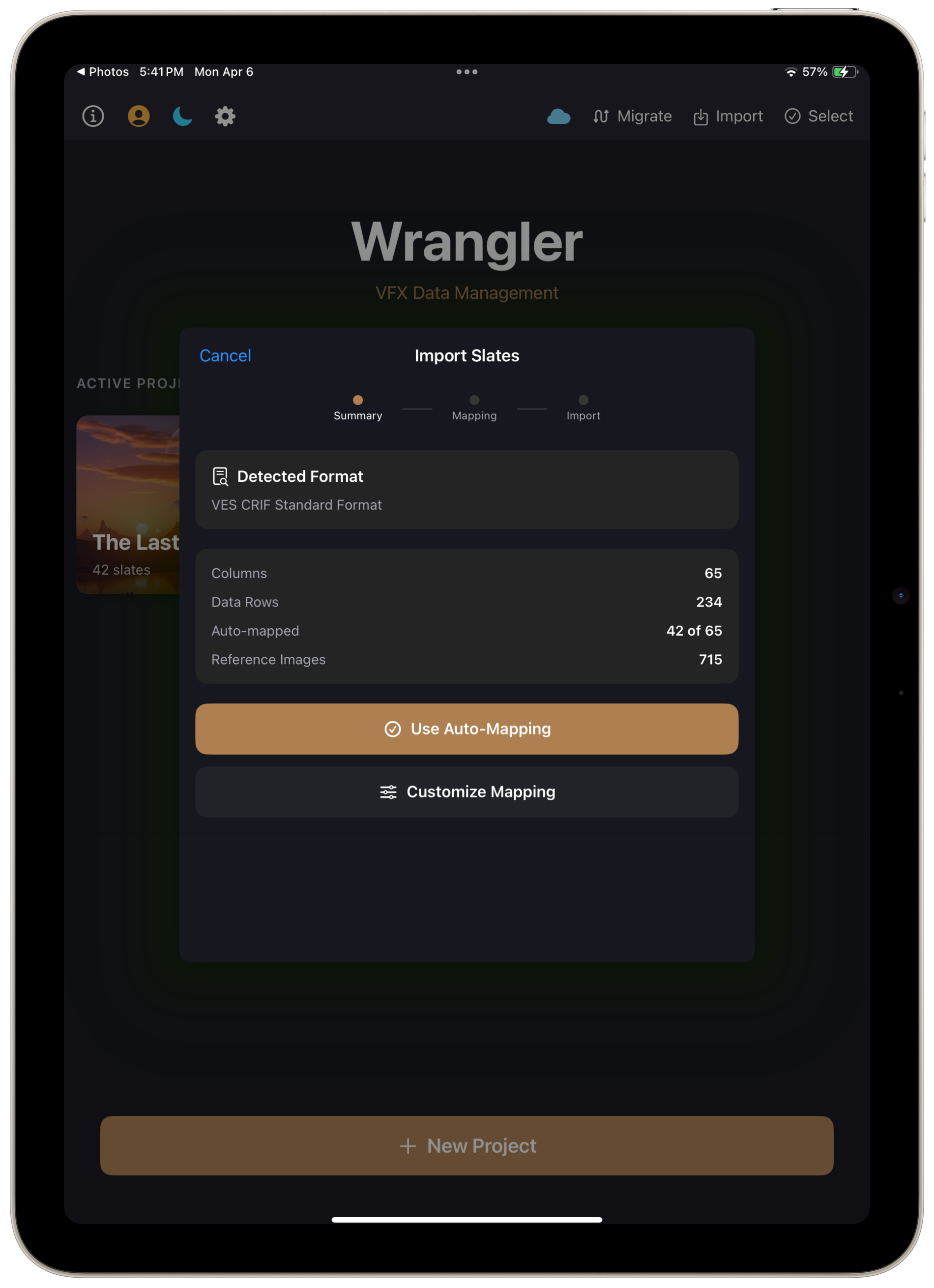
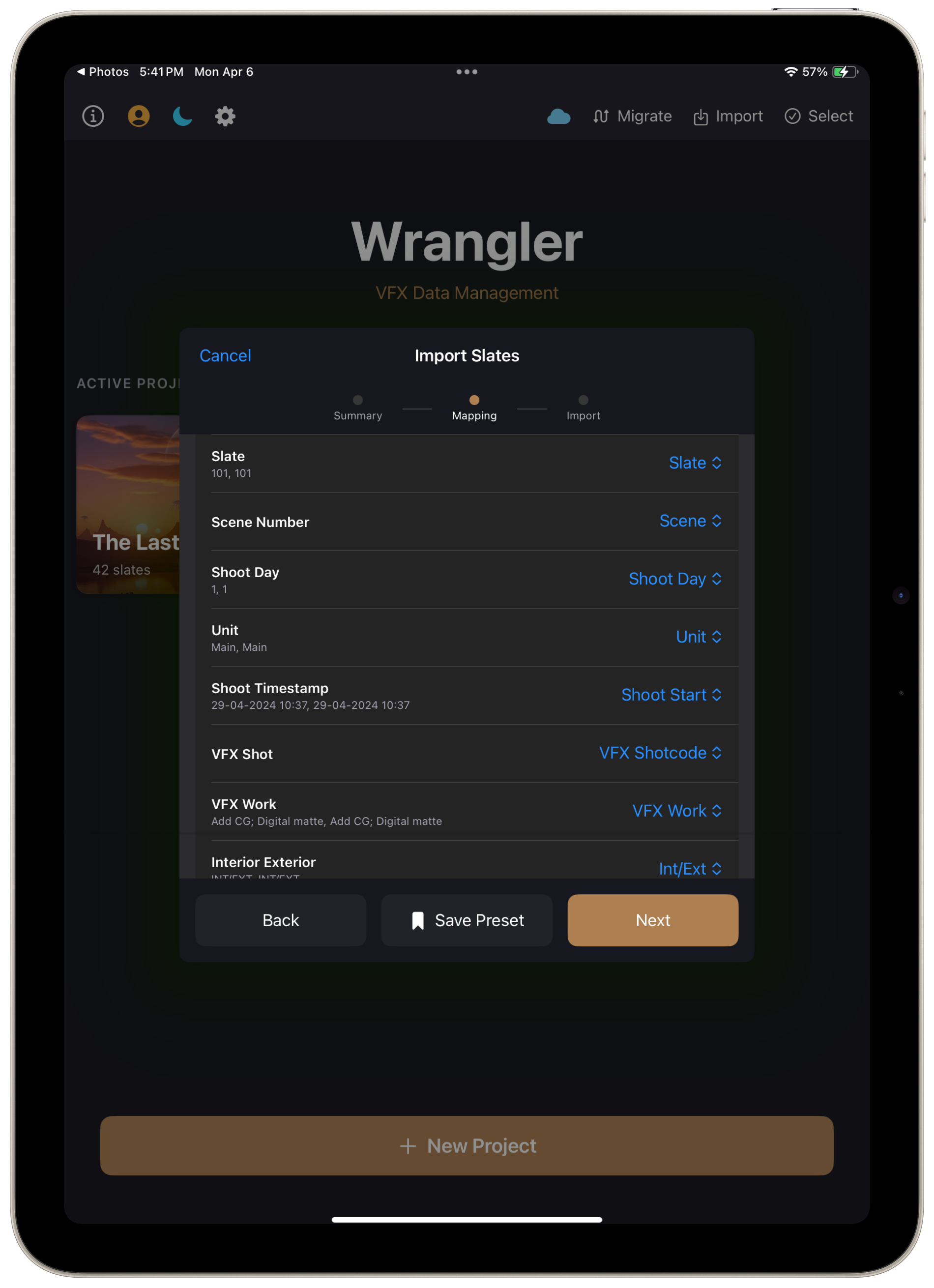
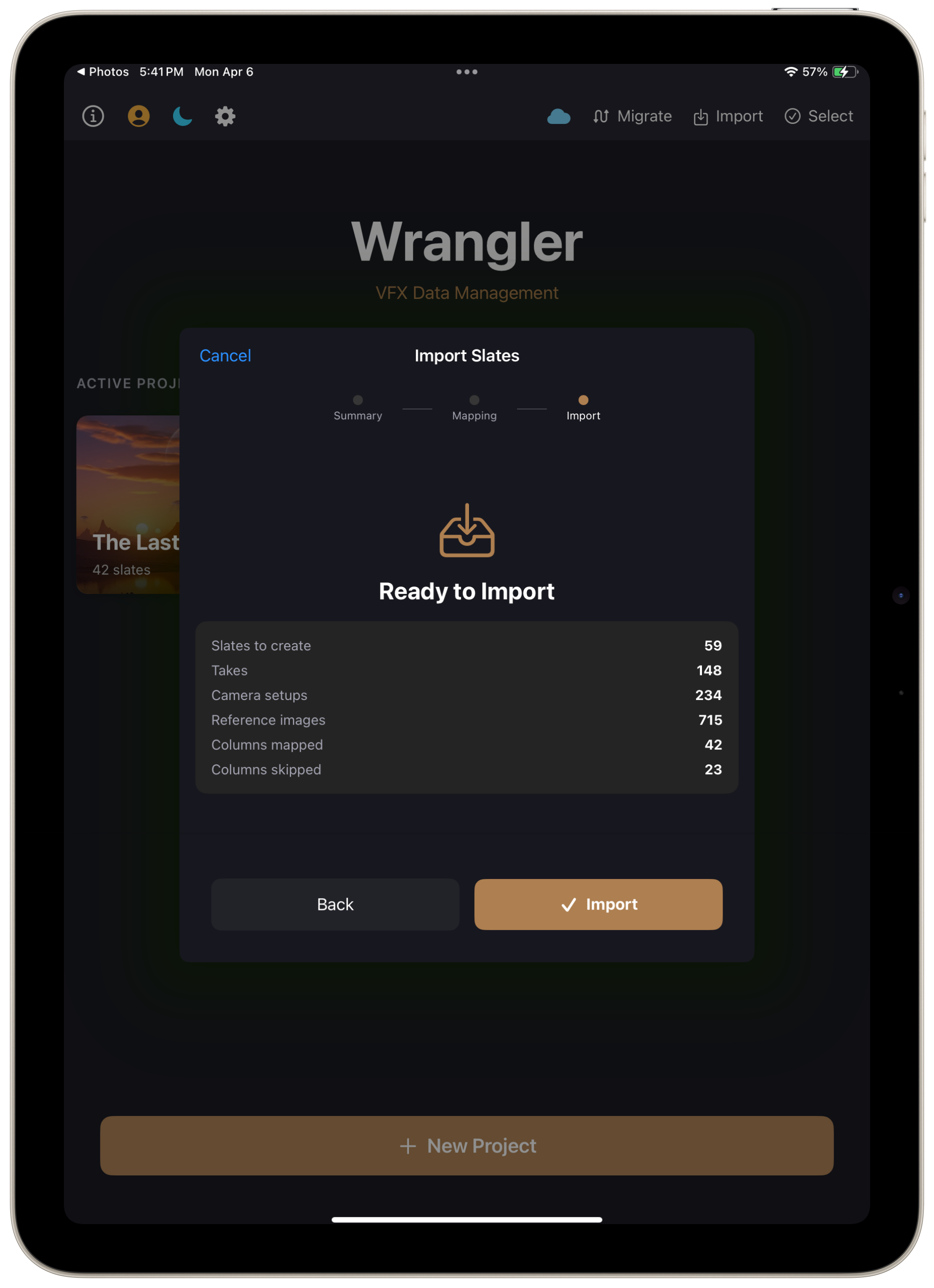
- Review the Import Summary: detected format, column mapping, and image count
Wrangler auto-detects Setellite Single, VES CRIF, and Setellite Multi exports from the headers and filename. Use the Format picker on the summary screen to override if it got it wrong. Standard columns are auto-mapped; custom column names can be manually assigned and saved as a preset for future imports.
If your lens names contain embedded serial numbers (e.g. Cooke s7/i 65mm - 7065-0836), the import sheet shows a Lens Serial Numbers section with a separator picker (Auto-detect / Dash / Parens / Custom) and a live preview. Pick the pattern that matches your data — the matching gear-library lens entries get their Serial Number field populated automatically.
Verify Your Data
Open the imported project and spot-check a few slates to confirm:
- Slate names, scene numbers, and shoot days carried over
- Take and camera data is correctly grouped
- Reference photos are attached to the correct slates
- VFX fields (shot codes, descriptions) are populated
Good to Know
Match the format to the tool
Setellite users → Single export. FileMaker / other databases → VES CRIF. Setellite's VES export drops Lens IDs and serial numbers, so the Single export is the safer round-trip.
Save your mapping preset
Migrating multiple projects from the same FileMaker template? Save your column mapping as a preset the first time.
Photos are optimized on import
Wrangler compresses reference photos to optimize storage and performance. Originals are not modified.
One project per migration
Each CSV import creates a new project. Wrangler uses your CSV's "Job" column for the project name when present, otherwise it derives the name from the filename (e.g. MyMovie_20241209_SINGLE.csv → MyMovie).
Gear library populates automatically
Every lens, camera, head, grip, and filter referenced in your slates is added to the project's gear library on import — with serial numbers and filmback values attached when present.
Cameras split per letter
Two cameras with the same model running side-by-side (Camera A — Sony Venice, Camera B — Sony Venice) import as two distinct gear-library entries, not one.
Common Issues
Lenses imported without serial numbers (Setellite)
Setellite's VES export leaves Lens ID and Lens Serial Number blank — re-export using the Single format instead. Setellite stores the serial inside the lens name (e.g. Cooke s7/i 65mm - 7065-0836) and Wrangler's lens-serial picker on the import screen extracts it automatically.
Photos didn't attach to slates
Check that filenames contain slate followed by the slate name (e.g. _slate114). The name must exactly match the slate name in your CSV.
Some columns show as "Skip"
Setellite's measurement unit columns are meant to stay on Skip. Those units come across automatically with their values, straight into the matching Wrangler fields, so there is nothing to map and nothing is lost.
For anything else, tap Customize Mapping to assign a column by hand. Almost everything in a Setellite Single or VES export now maps on its own — only a few studio and production-admin columns have no home in Wrangler, and a handful of VES columns are simplified or merged.
Detected format looks wrong
The summary screen has a Format picker — use it to override the auto-detection. Switching the format refreshes the column mappings using that format's rules (different position-aware behavior, different override sets).
CSV shows "empty or invalid" error
Verify your CSV is UTF-8 encoded. Some exports use other encodings that cause issues. Re-export from your source tool with UTF-8 selected.
ZIP file shows "No CSV found"
Make sure the CSV file is inside the ZIP, not just photos. The CSV should have a .csv or .txt extension.